ULTRA Tools for
Google NotebookLM
Batch add from YouTube, Google, Reddit & 25+ sites. Merge sources, translate, summarize — all in one click.
Auto-sync your favorite channels — new content lands in the right notebook automatically.
Trusted by 10,000+ researchers
Everything You Need to Research Faster
Automate the tedious parts of knowledge gathering. Focus on insights.
Batch Add from 25+ Sites
Add multiple sources at once from YouTube search, Google Search, Reddit, PubMed, and more. No more one-by-one copy-pasting.
Merge
Combine 20, 50, or even 100+ sources into a single text document. Instead of filling all 300 source slots, use just 1.
YouTube Transcripts
Extract full transcripts with [MM:SS] chapters or timestamps.
AI Summarize
Get AI-powered summaries of any source before adding it. Preview key points, then save the original, summary, or both.
AI Translate
Automatically translate foreign sources into your native language before adding. Any language pair. Transcript panel translates in real-time.
Smart Sort (AI)
Let AI analyze your selected sources and automatically sort them into the right notebooks. Finds matches or suggests new ones.
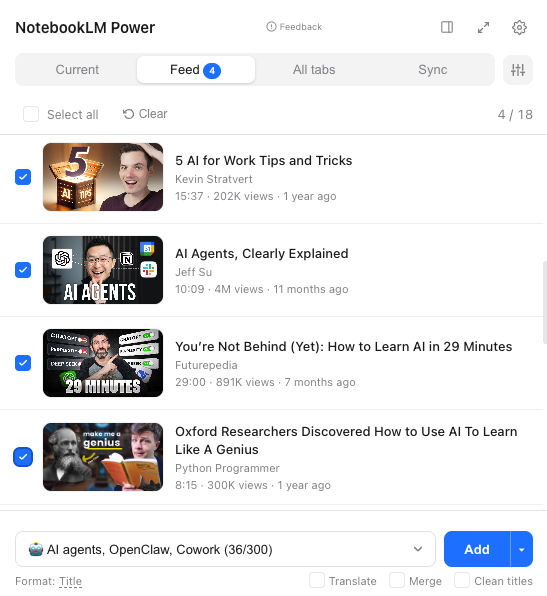
Batch Add from Feeds
Open the extension on YouTube search, Google Search, Reddit, or PubMed — see all results in the Feed tab to filter and add in batch.
All Open Tabs at Once
Switch to "All Tabs" to see every open browser tab. Select the ones you need, add them all in one click, and auto-close them.
Clean Import
Strip ads, navigation, and clutter from any web page. Import only the clean article.
Auto-Sync
Monitor YouTube channels, playlists, and RSS feeds. New content is automatically added to your notebooks on a schedule you choose.
AI Smart Routing
AI analyzes each new source and routes it to the most relevant notebook automatically. Set a fallback for unmatched content.
Smart Digest
AI-generated summary of all synced sources, delivered as a Note in your notebook. Optional audio overview and email delivery.
Export Anywhere
Download sources as Markdown, plain text, or JSON — or send them straight to NotebookLM, Google Drive, Notion, or Obsidian.
Notebook Folders
Organize your notebooks into folders with drag & drop. Add emoji icons. Works right on the NotebookLM homepage.
Activity Log
Full history of everything you've added. Search, navigate, delete entries. Click a badge to jump directly to its log entry.
Works Where You Work
Seamless integration with 40+ platforms — plus any website.
Video & Lectures
Search & AI
Social & Discussion
Research & Science
Content & Blogs
Podcasts & Audio
Bookmarks & Readers
Regional
Plus any website — just open any page, click Add, and it goes straight to your NotebookLM notebook.
Curating Knowledge in 3 Steps
No more tab juggling. A streamlined workflow for professionals.
Search or Browse
Open YouTube, Google, Reddit, PubMed, or any supported site. Click the extension icon to activate NotebookLM ULTRA.
Select & Filter
Use checkboxes to pick exactly what you need. Filter out noise, sort by relevance, and translate languages on the fly.
Add & Merge
Choose your target notebook and click Add. Dozens of sources merge instantly saving your NotebookLM slots.
Simple, transparent Pricing
Start for free. Upgrade when you need more power.
|
Free
$0 /mo
Everyday research
|
Pro
$5 /mo
Power users
|
Most Popular
Ultra
$12 /mo
AI automation
|
Ultra+
$18 /mo
200 AI/day
|
|
|---|---|---|---|---|
| Core | ||||
| Current tab one-click add Open any web page, click the extension icon, and add it to your notebook instantly. | ||||
| Batch adds per session Add multiple sources at once from YouTube, Google, Reddit, PubMed, and 25+ other sites. No more one-by-one copy-pasting. | 5 | Unlimited | Unlimited | Unlimited |
| Merge Combine 20, 50, or 100+ sources into a single text document. Instead of filling all 300 source slots, use just 1. | ||||
| YouTube transcripts Extract full transcripts with [MM:SS] chapters or timestamps. | ||||
| Batch Add from Feeds Browse YouTube channels, playlists, Google Search, Reddit, or PubMed — see all results in the Feed tab, filter, and add dozens at once. | ||||
| All Open Tabs at once See every open browser tab, select the ones you need, add them all in one click, and auto-close them. | ||||
| Clean Import Strip ads, navigation, and clutter from any web page. Import only the clean article. | ||||
| AI Features | ||||
| AI Summarize & Translate Get AI-powered summaries before adding sources. Translate foreign sources into your language. | 5/day | 50/day | 200/day | |
| Smart Sort (AI) AI analyzes your selected sources and automatically sorts them into the right notebooks. Finds matches or suggests new ones. | ||||
| Automation | ||||
| Auto-Sync Monitor YouTube channels, playlists, and RSS feeds. New content is automatically added to your notebooks on a schedule you choose. | ||||
| AI Smart Routing AI analyzes each new source and routes it to the most relevant notebook automatically. Set a fallback for unmatched content. | ||||
| Smart Digest AI-generated summary of all synced sources, delivered as a Note in your notebook. Optional audio overview and email delivery. | ||||
| Auto-Merge Automatically consolidate synced sources into merged documents on a schedule, keeping your notebooks clean and organized. | ||||
| Smart Alerts Get a Chrome notification when new synced content matches a keyword you set (case-insensitive title match, comma-separated keywords per subscription). | ||||
| Source Recommendations Get AI-suggested sources based on your notebook content — discover related articles, videos, and papers you may have missed. | ||||
| Export & Tools | ||||
| Export formats Download sources as Markdown, plain text, or JSON. Sending to NotebookLM, Google Drive, Notion, and Obsidian is included on every plan. | 3 | 3 | 3 | 3 |
| Webhooks Send a POST to Slack, Make, n8n or Zapier every time a source is added. Set it up in Settings → Account → Webhooks. | ||||
| Organization & Interface | ||||
| Notebook Folders Organize your notebooks into folders with drag & drop. Add emoji icons. Works right on the NotebookLM homepage. | ||||
| Activity Log Full history of everything you've added. Search, navigate, delete entries. Click a badge to jump directly to its log entry. | ||||
| Inline YouTube buttons Add-to-notebook buttons injected directly into YouTube search results and video pages for one-click adding. | ||||
| 8 interface languages Use the extension in English, Spanish, French, German, Portuguese, Japanese, Russian, or Chinese. | ||||
| Dark mode & auto theme Switch between light, dark, and system-matching themes for comfortable use day and night. | ||||
| Get Free | Get Pro | Get Ultra | Get Ultra+ | |
All plans include a 7-day money-back guarantee. Payments processed securely by Stripe. Cancel anytime.
Frequently Asked Questions
Source & Import
How do I add more than 50 sources to a notebook?
NotebookLM limits each notebook to 50 sources on the free plan (300 on Plus). NotebookLM ULTRA solves this with Merge — combine 20, 50, or even 100+ YouTube videos and web pages into a single text source. Instead of using 100 source slots, you use just 1. All content is preserved with timestamps and source URLs.
Can I add multiple YouTube videos at once instead of one by one?
Yes! Open any YouTube search page, channel, or playlist — the Feed tab shows all videos with checkboxes. Select 10, 50, or all of them, pick your notebook, and click Add. Done in seconds, not hours of copy-pasting URLs.
What sites and platforms are supported?
NotebookLM ULTRA works with 25+ platforms including YouTube, Google Search (15 locales), Google Scholar, Reddit, Hacker News, PubMed, arXiv, Medium, Substack, GitHub, Stack Overflow, X/Twitter, LinkedIn, Wikipedia, Perplexity AI, TED, Vimeo, and more. Plus any website — just open the page, click Add, and it goes straight to your notebook.
Why does NotebookLM say "Transcript not available" for some YouTube videos?
NotebookLM's native YouTube import often fails on videos without English captions or with auto-generated subtitles in other languages. NotebookLM ULTRA bypasses this with its own transcript extraction that works with 1000+ languages and has a near-100% success rate. If a video has any captions (auto or manual, any language), we'll get the transcript.
Can I add all my open browser tabs to a notebook at once?
Yes — the All Tabs feature shows every open tab in your browser. Check the ones you want, click Add. You can even close the tabs automatically after they're added. Perfect for research sessions where you've opened 30+ articles.
What is Clean Import?
Clean Import strips ads, navigation menus, sidebars, and other clutter from any web page before adding it to your notebook. You get only the clean article text, which means better AI responses and fewer irrelevant citations from NotebookLM.
AI Features
What does AI Summarize do?
AI Summarize generates a concise summary of any source before you add it to your notebook. You can preview key points, then choose to save the original, the summary, or both. Available on Pro (5/day), Ultra (50/day), and Ultra+ (200/day).
Can I translate content before adding to my notebook?
Yes — AI Translate converts source content into any of 13 languages before adding it to your notebook. Perfect for researchers working with sources in foreign languages. Timestamps and formatting are preserved. The transcript panel also translates in real-time.
What is Smart Sort?
Smart Sort uses AI to analyze your selected sources and automatically sort them into the most relevant notebooks. It looks at your existing notebooks and their content, finds the best match for each source, or suggests creating a new notebook if nothing fits.
Automation (Ultra)
What is Auto-Sync and how does it work?
Auto-Sync monitors YouTube channels, playlists, and RSS feeds on a schedule you choose. When new content appears, it's automatically added to your designated notebook — no manual work required. Set it once and your research stays up to date.
What is AI Smart Routing?
AI Smart Routing analyzes each new source that arrives via Auto-Sync and automatically routes it to the most relevant notebook. You can set a fallback notebook for unmatched content. Combined with Auto-Sync, it creates a fully automated research pipeline.
What is Smart Digest?
Smart Digest generates an AI-powered summary of all sources synced since the last digest, delivered as a Note in your notebook. You can also receive it via email or as an audio overview — perfect for staying on top of your research without reading every source.
Merge & Export
What does "Merge" do exactly?
Merge combines multiple selected sources (YouTube videos, web pages) into one text document. Each source's content is extracted, cleaned, and combined into a single text source with timestamps and source URLs. This saves notebook space — 50 videos become 1 source slot — and gives NotebookLM a unified document to analyze.
How long does merging 100+ sources take?
Merging 100 YouTube videos takes approximately 2 minutes with parallel processing. You can see real-time progress for each source, and the process survives if you accidentally close the extension popup.
How do I export my notebook with all sources?
NotebookLM has no built-in export. NotebookLM ULTRA adds full notebook export — select one or multiple notebooks, click Export, and download files with complete source content (not just AI summaries). This is the only way to back up your NotebookLM data.
What export formats are available?
NotebookLM ULTRA downloads sources as Markdown, plain text, or JSON, and sends them straight to NotebookLM, Google Drive, Notion, or Obsidian. Export is included on every plan, free ones too.
Organization
Can I organize my notebooks into folders?
NotebookLM doesn't have native folders. NotebookLM ULTRA adds a folder system directly on the NotebookLM page — create folders, drag notebooks into them, add emoji icons. This feature is free for all users.
Is there cross-notebook search?
NotebookLM doesn't support searching across notebooks. NotebookLM ULTRA's Activity Log tracks everything you've ever added across all notebooks — searchable by title, URL, or notebook name. You can always find where you saved something.
Pricing & Plans
Is NotebookLM ULTRA free?
Yes, the core features are free: add the current page to any notebook, YouTube transcripts, Notebook Folders, Activity Log, inline YouTube buttons, and 5 batch adds per session. Merge, AI features, and unlimited batch adds require a paid plan.
What's the difference between Free, Pro, Ultra, and Ultra+?
Free covers everyday basics. Pro ($5/mo) unlocks unlimited batch adds, Merge, Auto-Sync, Smart Alerts, Clean Import, Smart Sort, and AI Summarize & Translate (5/day). Ultra ($12/mo) adds the AI automation layer: AI Smart Routing, Smart Digest, Auto-Merge, Source Recommendations, and 50 AI uses/day. Ultra+ ($18/mo) raises the AI ceiling to 200 uses/day with priority support.
How does NotebookLM ULTRA compare to NotebookLM Plus?
They solve different problems. NotebookLM Plus ($20/mo, bundled with Google One AI Premium) increases source limits and AI query limits within NotebookLM itself. NotebookLM ULTRA adds features that NLM doesn't have at any price — batch import from 25+ sites, merge, translate, summarize, auto-sync, AI routing, export, and more. Many users have both.
Technical
What browsers are supported?
NotebookLM ULTRA is a Chrome desktop extension and works on any Chromium browser — Chrome, Edge, Brave, Arc, and Opera. Mobile browsers are not supported.
Is my data safe? Do you store my notebook content?
NotebookLM ULTRA processes data client-side wherever possible. Your notebook content never passes through our servers except for: (1) YouTube transcript extraction, (2) AI translation and summarization, (3) export processing. We don't store notebook content. License verification uses your email hash only.
Does it slow down my browser?
No. The extension activates only when you click its icon or visit a supported site. It uses ~2MB of memory when active, zero when idle.
Getting Started
How do I install NotebookLM ULTRA?
Do I need a NotebookLM account?
Yes — you need a Google account with access to NotebookLM. Sign in to NotebookLM in your browser first, then use the extension. It works with free and paid NotebookLM accounts.
Can I use it with multiple Google accounts?
Yes — NotebookLM ULTRA supports multi-account switching. If you're signed into multiple Google accounts, select which one to use from the Settings tab.